
Unity Package Manager 2019.3 Round-up
Originally published on Medium
While it’s already January 2020, but we haven’t seen the official release of Unity 2019.3 yet. Unity 2019.3 is surely a large and complex release. The good news is that with the candidate 5, 2019.3 is now in the final stages of beta testing.
We’ll go through the changes of the Unity Package Manager, which is mostly related to the OpenUPM project.
Add a package from tarball
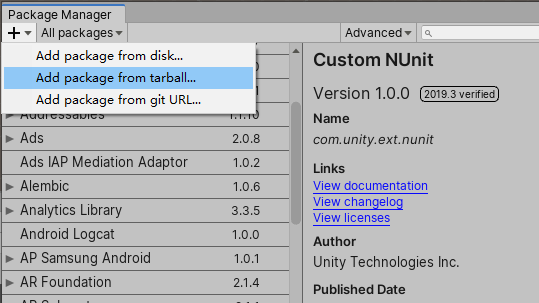
There’re a few scenarios you’ll prefer to install from a binary file:
- Purchasing package from a private source, which usually providing a link to download a tarball file.
- Sharing a package temporarily, like the way it used to be with .unitypackage file.
To create a tarball file:
cd YOUR_PACKAGE_FOLDER
npm pack
The profile manifest references a tarball package with file protocol:
{
  "dependencies": {
    "package-name": "file:PATH_TO_TARBALL.tgz"
  }
}
The package contents are extracted to Library/PackageCache/package-name@hash. Hence, the package is immutable for the Unity editor.
Add a package from Git URL
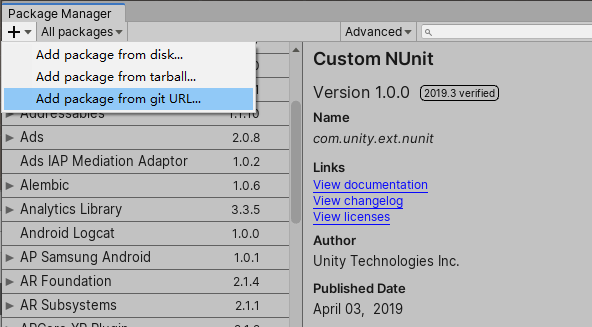
A missing feature for a long time, now you can install a package from Git URL. You cannot directly copy your public GitHub URL from the browser address bar. You need to copy it from the Clone or download dialog. Basically the URL needs end with .git. To specify a branch, use #branch-name.
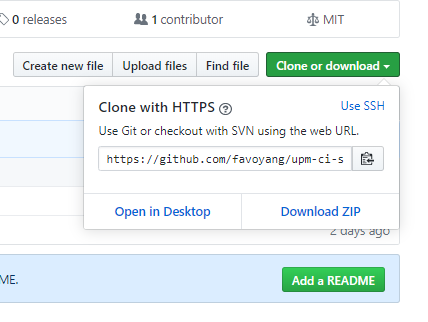
I wish the package manager can be smarter while handling the Git URL.
https://github.com/favoyang/upm-ci-samples-example                 # invalid
https://github.com/favoyang/upm-ci-samples-example.git             # valid
https://github.com/favoyang/upm-ci-samples-example/tree/upm        # invalid
https://github.com/favoyang/upm-ci-samples-example.git#upm         # valid
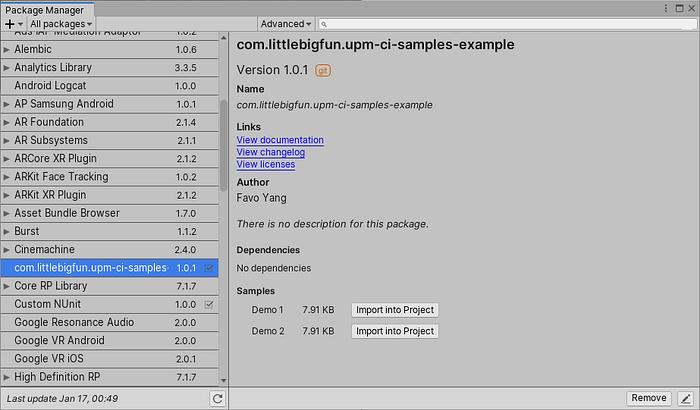
The package detail view of a Git package
After adding a Git URL, a lock entry was added to the project manifest.json, with Git commit hash recorded. This entry makes sure every project checkout will install the same version (hash).
{
  "dependencies": {
    "com.littlebigfun.upm-ci-samples-example": "https://github.com/favoyang/upm-ci-samples-example.git#upm"
  },
  "lock": {
    "com.littlebigfun.upm-ci-samples-example": {
      "revision": "upm",
      "hash": "2632d0fc4e7b73c97e4ce2186a36ba889fc378bc"
    }
  }
}
However, still no way to upgrade to the latest commit. You have to remove the package, then add it back to upgrade a package… For alternative ways to do the version control, please check out:
- OpenUPM Docs
- mob-sakai’s UpmGitExtension
Purchased assets in the package manager window
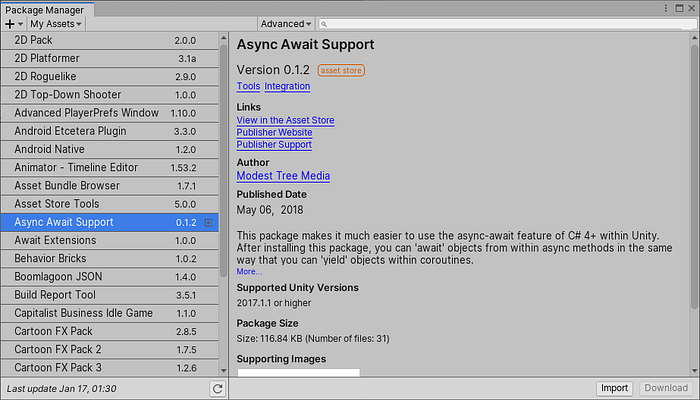
A neat feature that lists all purchased assets from the Asset Store. You get a compact view of an asset and click the import button to install the latest version to the Assets folder. Yes, still the Assets folder. It’s not a magic bullet to convert existing purchases from the Asset Store to the UPM format. But still, it’s a good thing to avoid opening the slow Asset Store panel when installing assets.
Authoring tasks (delayed)
A set of creating + developing features was available during the beta stage. But decided to move out of 2019.3 release. This will be available in a future release of Unity.
- Create a package from the Package Manager UI.
- Develop a package from the Package Manager UI.
- Remove a package in development from the Package Manager UI.
- Open the Package Manager UI to a selected package in the Project Browser.
That’s it. Soon you will see the official release of Unity 2019.3.